
If you just downloaded your overlays and you're looking at a folder full of files wondering what to do next, that's completely normal. Everybody starts here.
In this guide, I'm going to walk you through the whole process step by step, so everything feels clear and manageable. By the end, you'll know exactly where to go to get your overlays set up for the way you stream.
Before You Start: Where's My Download?
Your download link is on the order confirmation page you saw right after checkout, and we also email it to you so you can access it anytime. If you don't see the email, check your Spam or Promotions folder. If it's still missing, reply to your order email or message us through chat support on the site and we'll resend it. You can also see the full process in this step-by-step download guide.
Step 1: Open Your Overlay Folder
Your overlays download as a zip file, so the first thing you need to do is unzip it.
Find your download file and unzip it. On a Mac, just double-click the zip file. On Windows, right-click the zip file and select 'Extract All'. Once it's unzipped, you'll see all of your overlay files inside a regular folder (no zipper icon).
Need a visual? Here's a quick walkthrough:
You may also see a 'Read Me' file inside your folder. It's just a written backup of the steps, in case you prefer to follow text instead of video.
Step 2: Choose Your Setup Path
Every streamer uses a slightly different setup, so pick the guide that matches how you stream:
If You Use OBS Studio
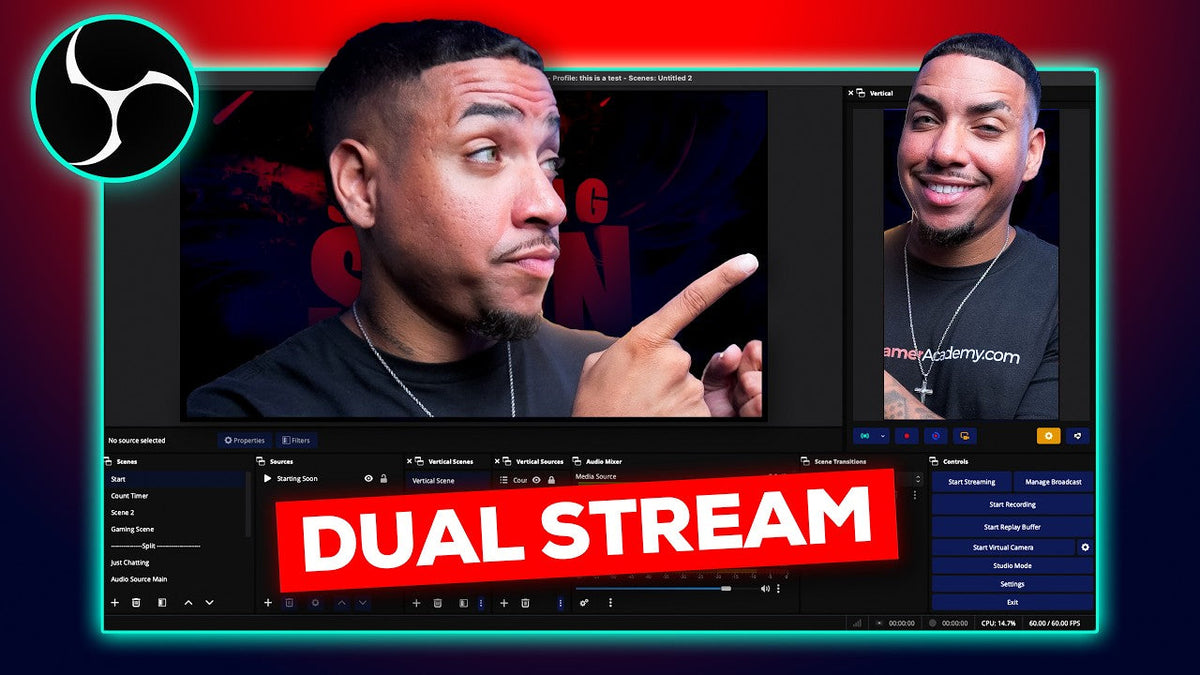
Follow the complete OBS Studio overlay setup guide. You can also watch the video tutorial here:
If You Use Streamlabs Desktop
Follow the Streamlabs overlay setup guide. Prefer video? Here it is:
If You Stream From a Console
You don't need OBS or Streamlabs to use overlays on console. Pick your console below:
Prefer video? Here are the PS5 and Xbox tutorials:
Still Stuck?
If the files are missing, corrupted, or you can't open the zip at all, just reach out through chat support on the site or reply to your order email, and we'll help you get it fixed. Once your stream looks the way you want it to, make sure to do a quick test recording before you go live so you can catch any layout issues early.
Thank you for choosing Stream Designz. I'm excited to see how your stream turns out!
How to Split Audio in OBS: Mic, Game, Discord & Music (Full Guide)