


Das Ultimative Stream-Paket – „Projekt Null“
Take your stream to the next level with overlays that captivate your audience.
Be the streamer everyone remembers with overlays that captivate.
Capture your viewers' attention and keep them engaged.
🎁 BOGO: Kaufe dieses Bundle und erhalte ein beliebiges TikTok Vertical Overlay Pack GRATIS

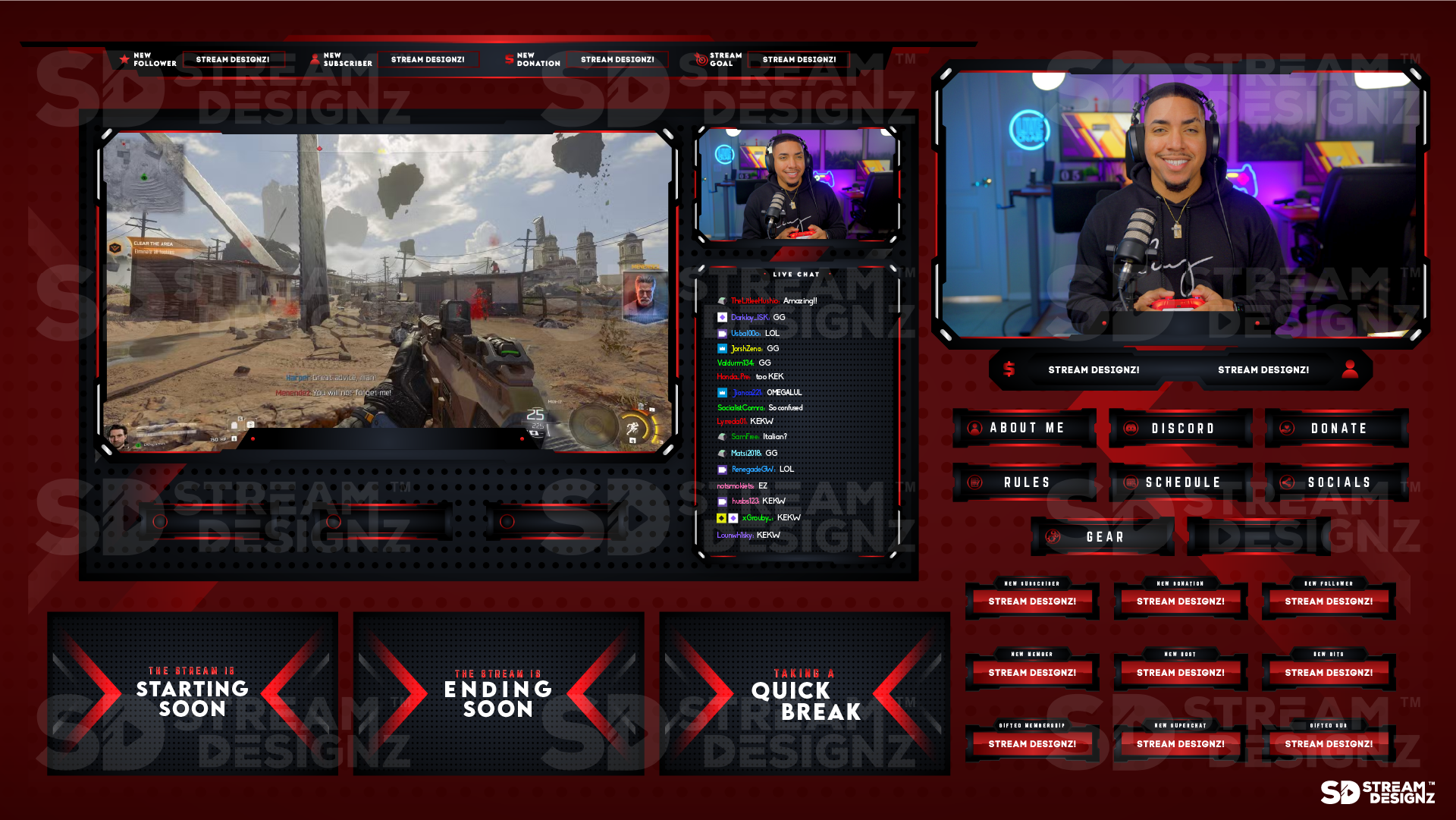
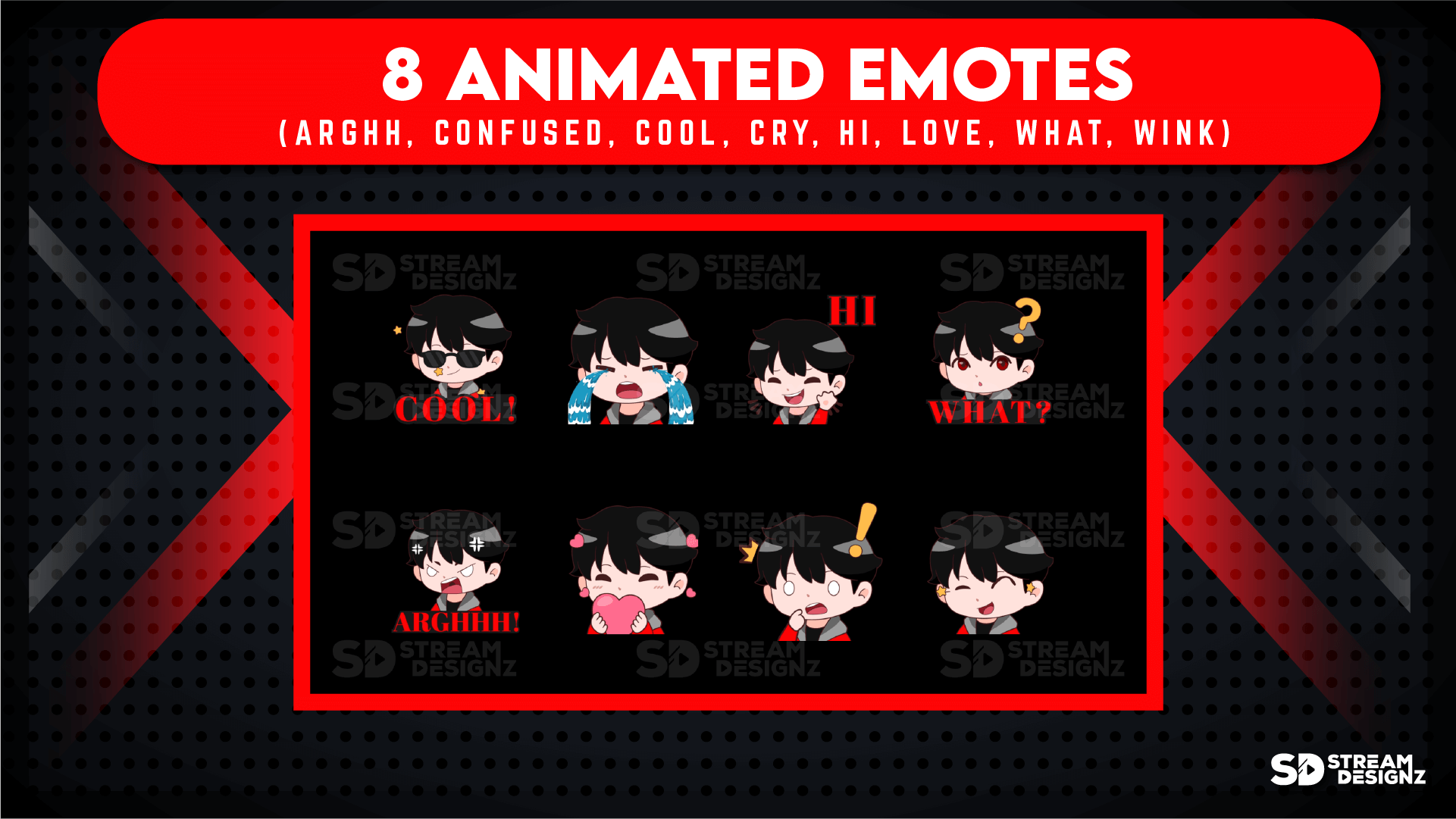
Das Project Zero Ultimate Stream Bundle ist das komplette Streaming-Paket im Project Zero Thema – mit einem abstrakten, kontrastreichen Design mit tiefroten, schwarzen, anthrazitfarbenen und weißen Akzenten. Scharfe geometrische Rahmen und geschichtete Texturen verleihen Ihrem Stream ein mutiges, modernes Aussehen. Alles für einen vollständig gebrandeten Stream in einem Download, einschließlich 8 benutzerdefinierter animierter Emotes.
Was ist enthalten?
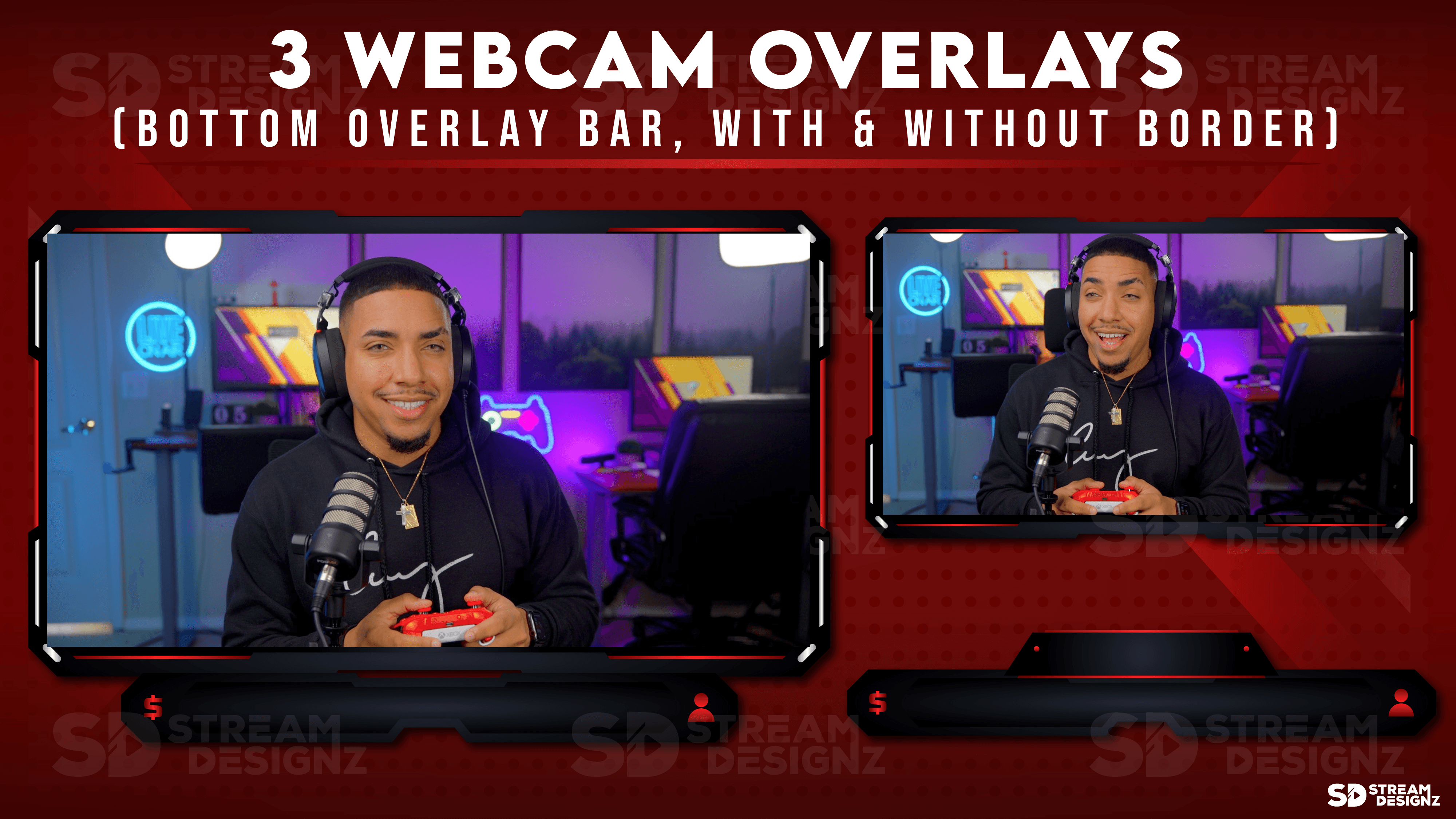
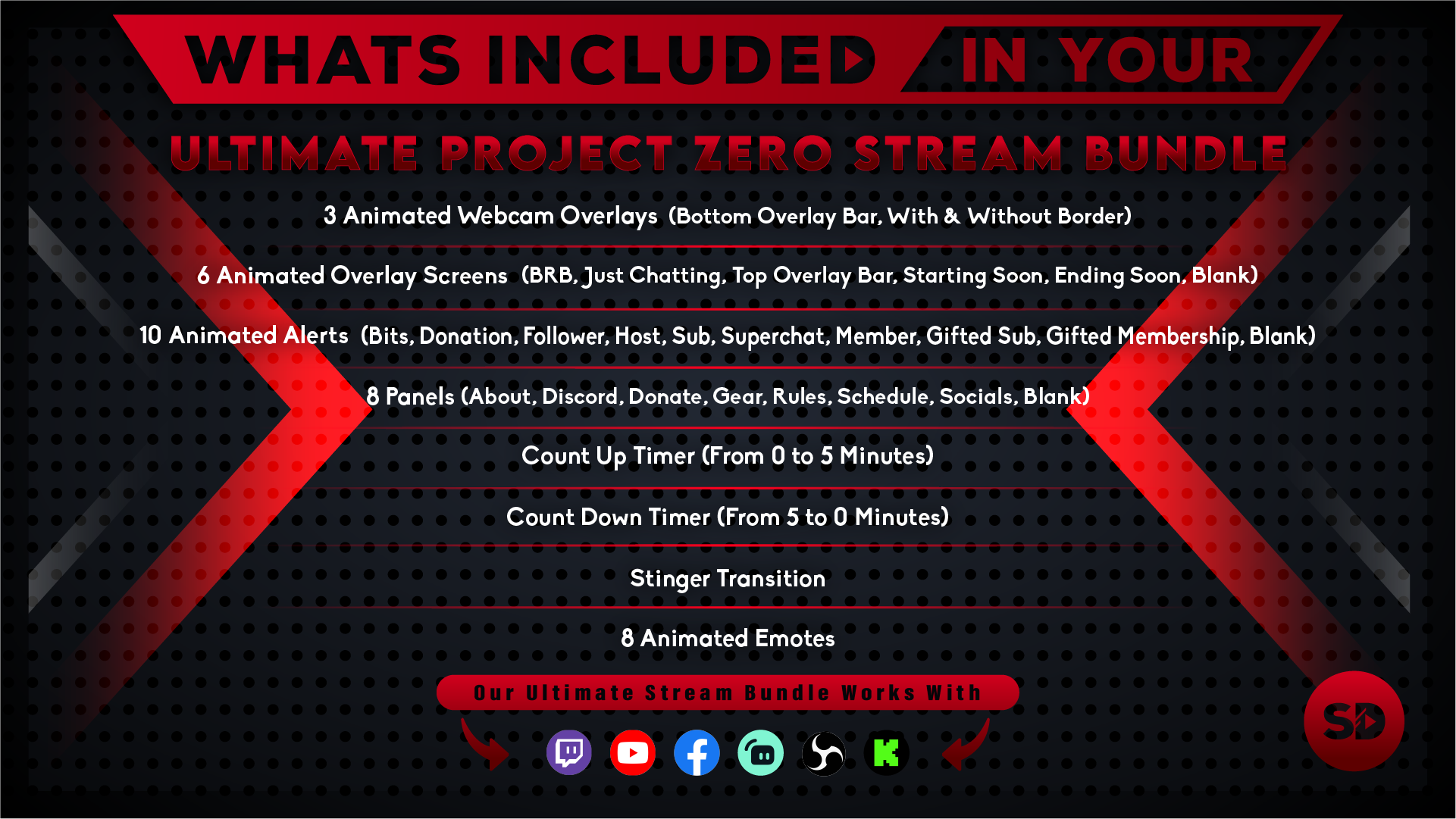
- 3 animierte Webcam-Overlays – untere Overlay-Leiste, mit Rahmen & ohne Rahmen (webm)
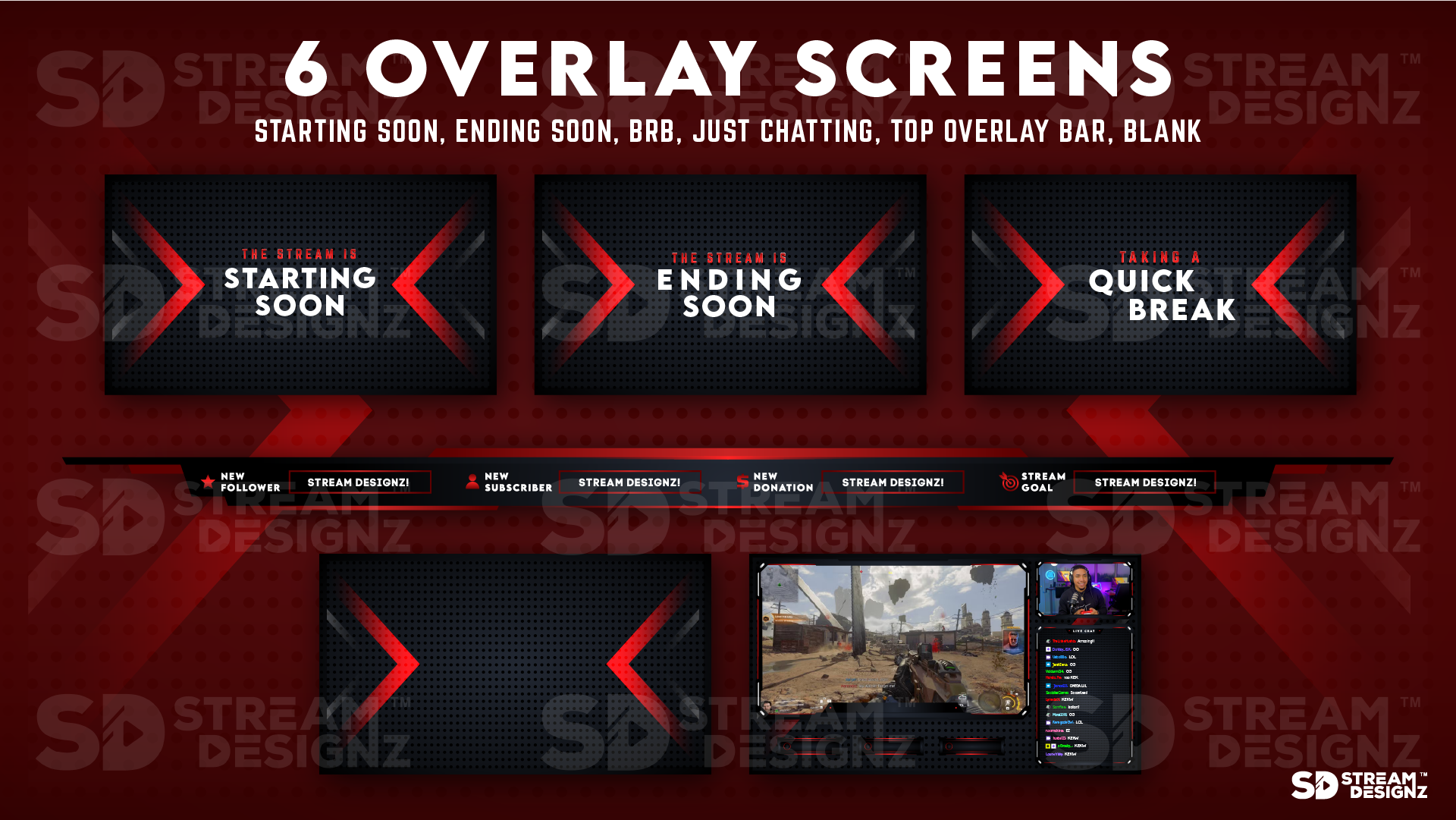
- 6 animierte Overlay-Bildschirme – BRB, Just Chatting, obere Overlay-Leiste, Starting Soon, Ending Soon, Blank (mp4)
- 10 animierte Benachrichtigungen – Bits, Spende, Follower, Host, Sub, Geschenkmitgliedschaft, Geschenkabbonnement, Superchat, neues Mitglied, Blanko (webm)
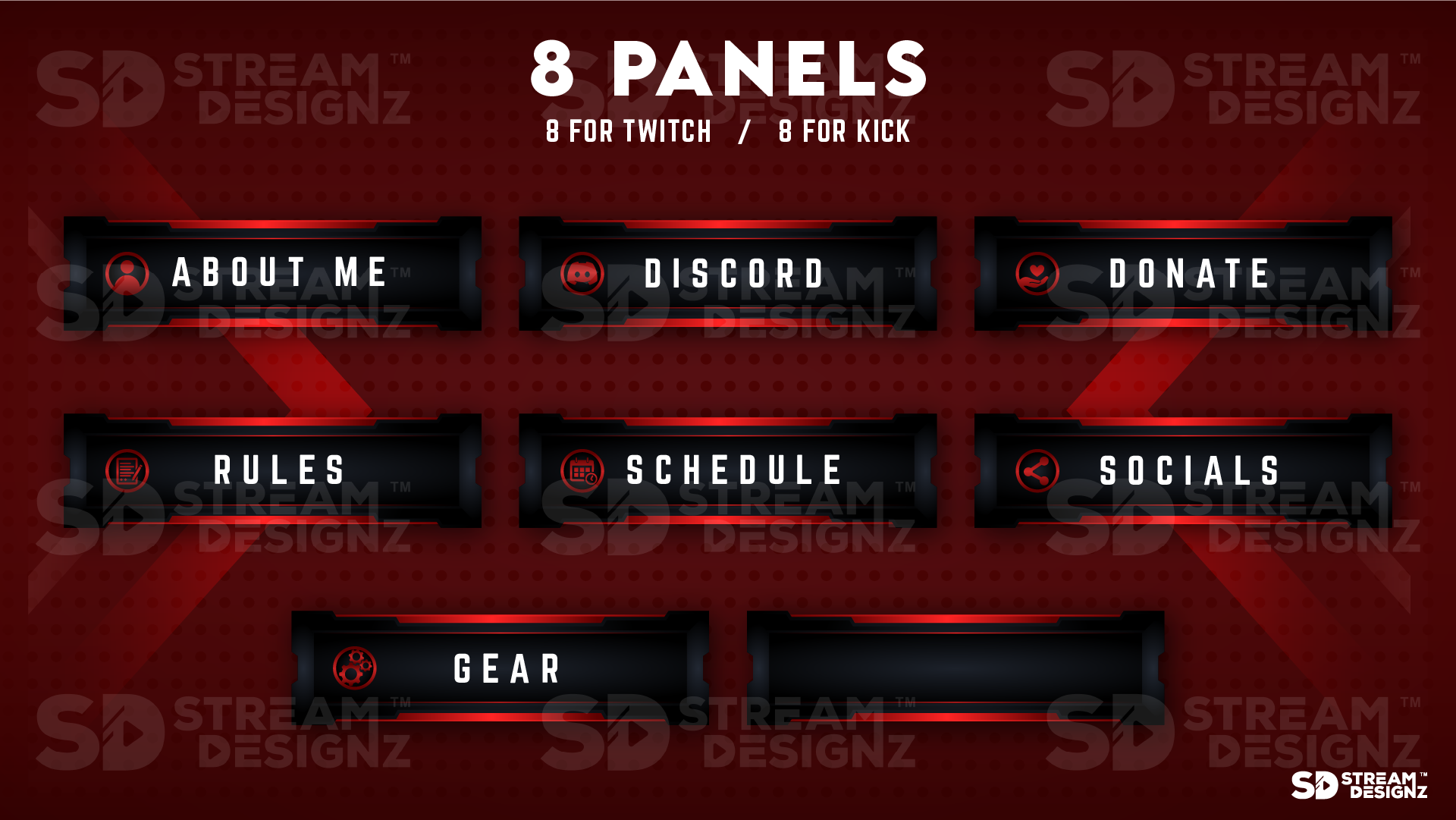
- 8 Panels – About, Discord, Donate, Gear, Rules, Schedule, Socials, Blanko (PNG)
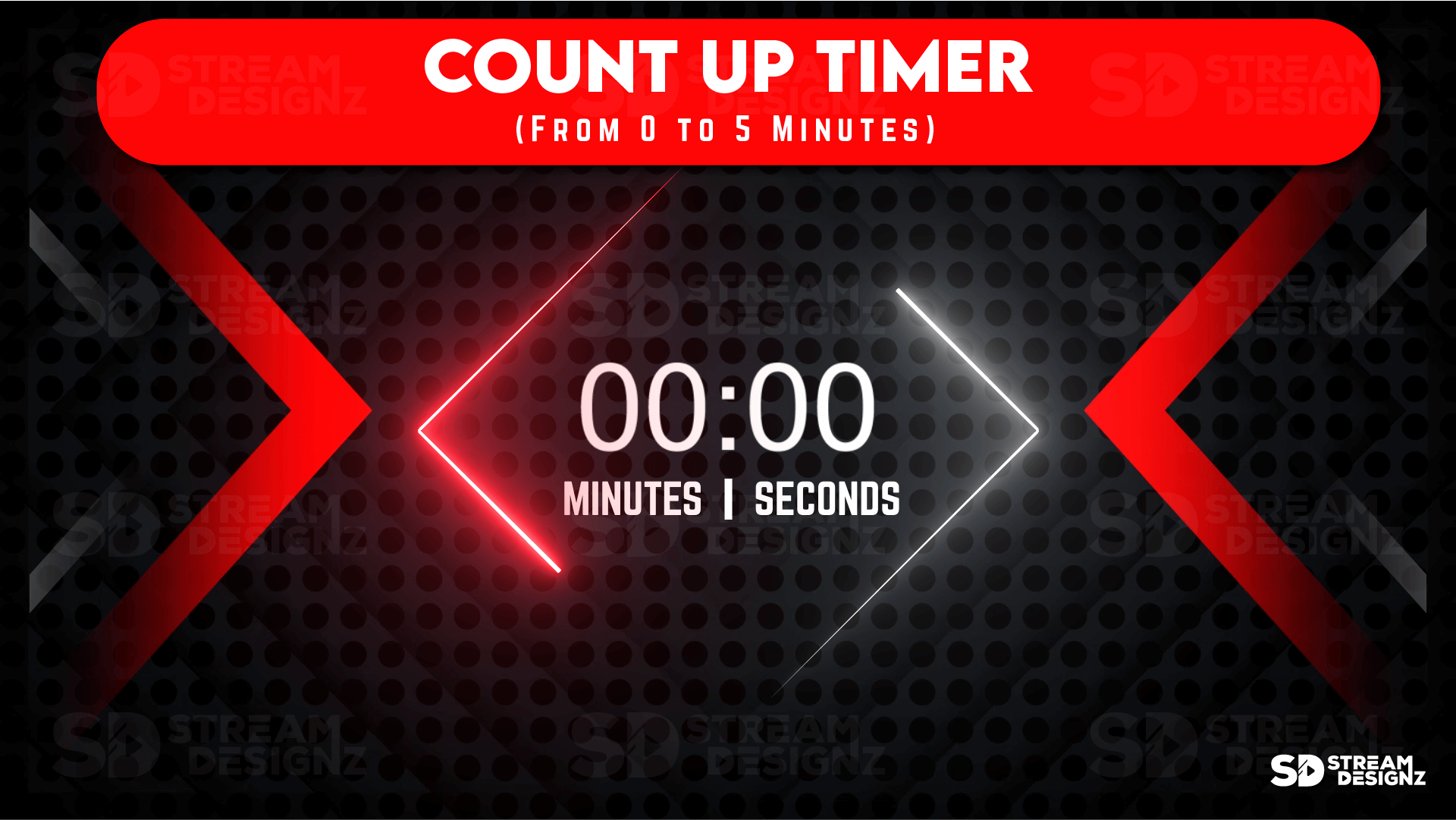
- 5-Minuten-Hochzähl-Timer (mp4)
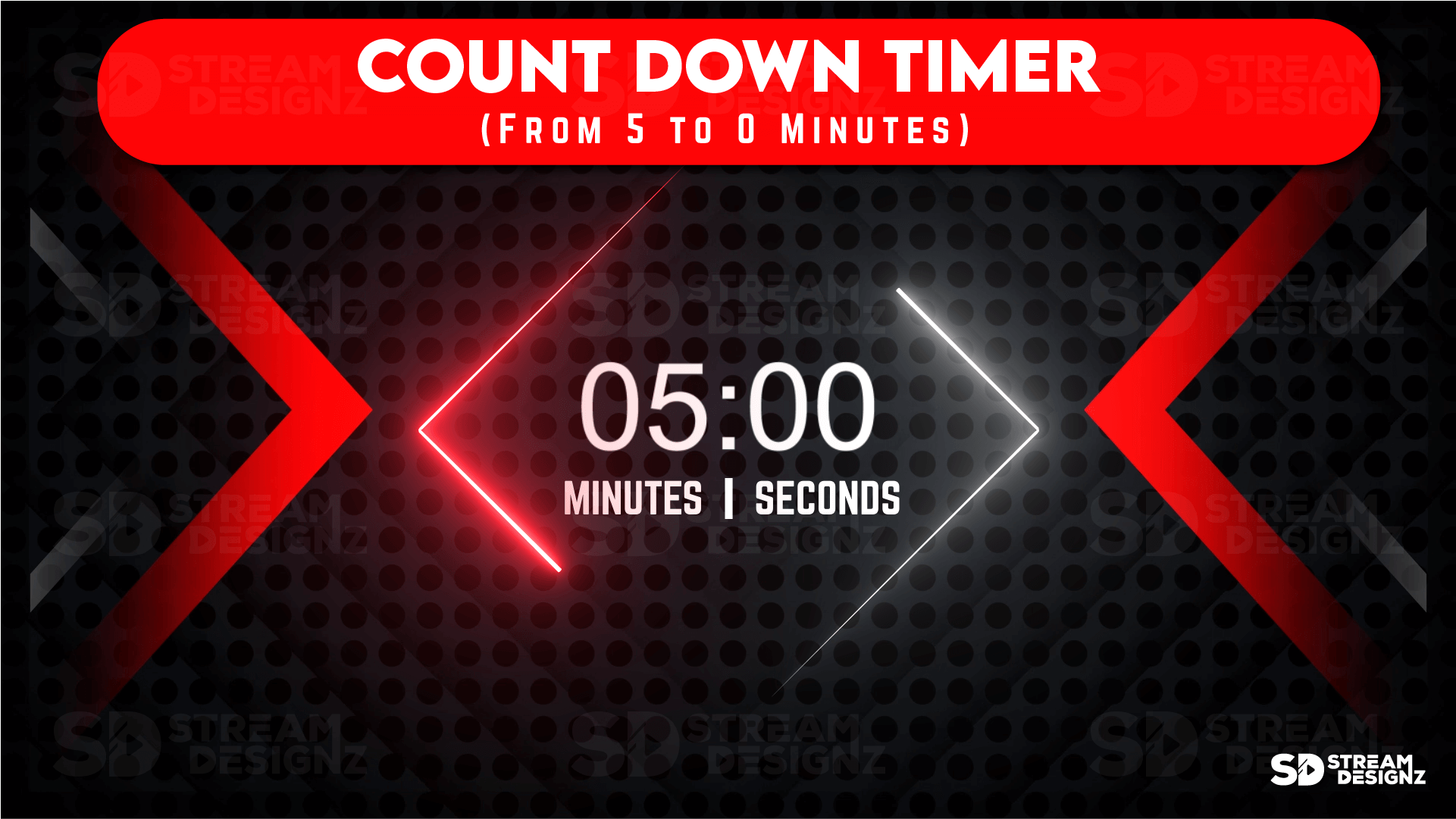
- 5-Minuten-Countdown-Timer (mp4)
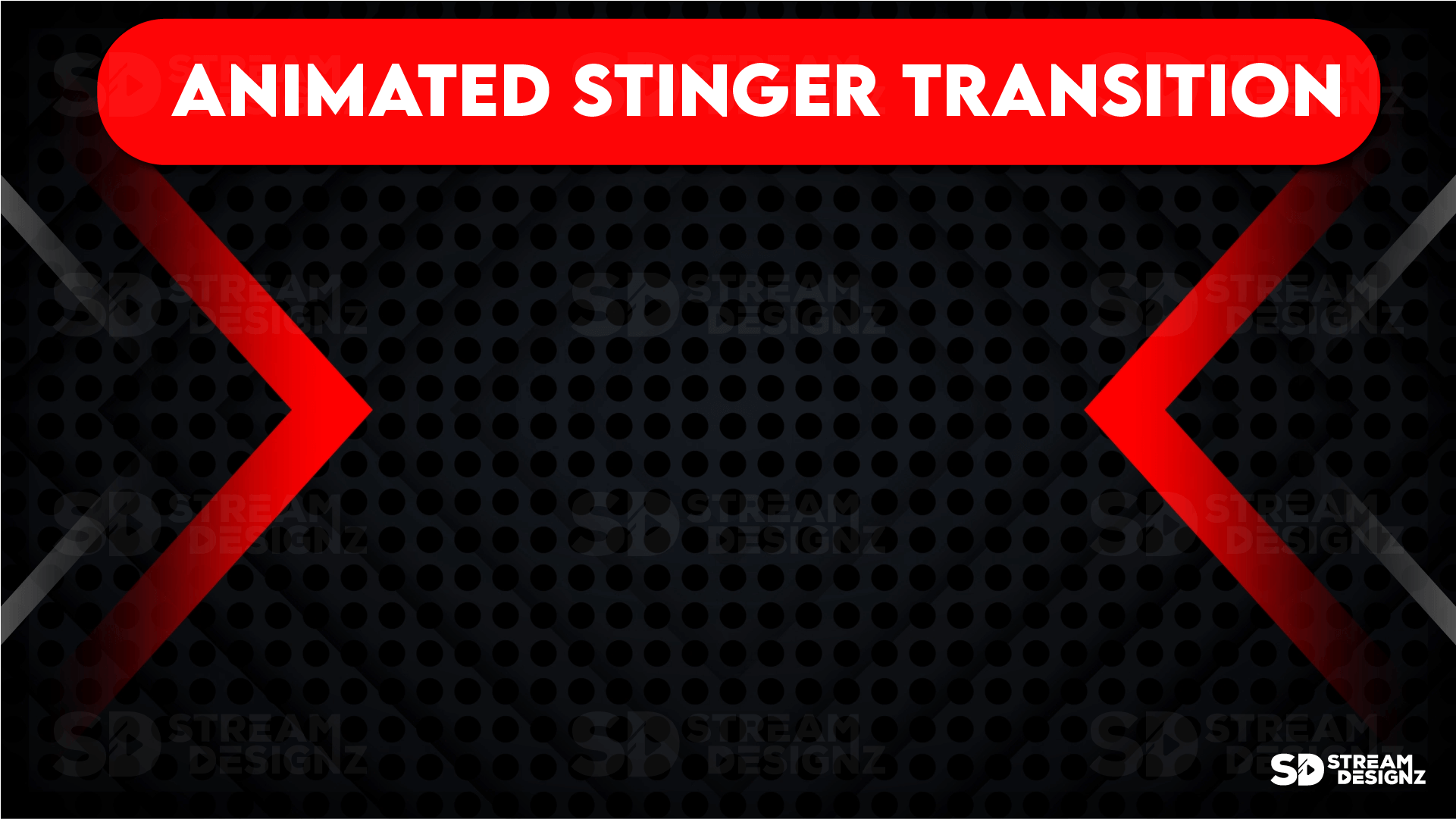
- Stinger-Übergang (webm)
- 8 animierte Emotes (gif)
- Sofortiger Download über .zip-Datei
- Textdokument mit Einrichtungsanweisungen
Kompatible Streaming-Software
Funktioniert mit OBS Studio, Streamlabs, XSplit und jeder Streaming-Software, die webm-, mp4- oder PNG-Dateien unterstützt. Kein Abonnement oder Plugin erforderlich.
Häufig gestellte Fragen
Was ist der Unterschied zwischen diesem Bundle und dem Overlay-Paket? Das Bundle enthält alles, was im Overlay-Paket enthalten ist, plus Timer, einen Stinger-Übergang und 8 animierte Emotes – eine komplette Einrichtung in einem Download.
Welche Auflösung haben die Overlays? Alle Overlays haben eine Größe von 1920x1080, der Standard-HD-Auflösung für Streaming.
Benötige ich Designerfahrung, um dies zu verwenden? Nein. Alle Dateien sind vorgefertigt und können direkt in Ihre Streaming-Software importiert werden. Einrichtungsanweisungen sind enthalten.
Ist dies ein Sofort-Download? Ja – Sie erhalten nach dem Kauf sofortigen Zugriff auf die .zip-Datei.

Passt gut zu
Unsere Overlays funktionieren perfekt mit





Bei Fragen können Sie uns jederzeit gerne kontaktieren. Wir melden uns werktags so schnell wie möglich, innerhalb von 24 Stunden, bei Ihnen.
-
Versandinformationen
Verwenden Sie diesen Text, um Fragen Ihrer Kunden so detailliert wie möglich zu beantworten.
-
Kundenbetreuung
Verwenden Sie diesen Text, um Fragen Ihrer Kunden so detailliert wie möglich zu beantworten.
-
Häufig gestellte Fragen
Verwenden Sie diesen Text, um Fragen Ihrer Kunden so detailliert wie möglich zu beantworten.
-
Kontaktieren Sie uns
Verwenden Sie diesen Text, um Fragen Ihrer Kunden so detailliert wie möglich zu beantworten.

Was ist im Paket enthalten:
✅ Sofortiger Zugang zum Download im .zip-Format
✅ Overlays in 1920x1080 Größe
✅ 3 animierte Webcam-Overlays (untere Overlay-Leiste, mit & ohne Rand)
✅ 6 animierte Overlay-Bildschirme (BRB, Just Chatting, obere Overlay-Leiste, Starting Soon, Ending Soon, Blank)
✅ 10 animierte Alerts (Bits, Spende, Follower, Host, Sub, Gifted Membership, Gifted Sub, Superchat, New Member, Blank)
✅ 8 Panels (About, Discord, Donate, Gear, Rules, Schedule, Socials, Blank)
✅ 5-Minuten-Aufwärts-Timer
✅ 5-Minuten-Countdown-Timer
✅ Stinger Transition
✅ 8 animierte Emotes
✅ Dateiformat für animierte Overlays: webm und mp4
✅ Dateiformat für statische Overlays: PNG
✅ 1 Textdokument (mit Anweisungen zur Verwendung Ihrer heruntergeladenen Datei)
Lass deinen Stream professionell aussehen
Häufig gestellte Fragen
Hast du Fragen? Wir sind hier, um dir zu helfen, deinen Stream zu verbessern!
Wie erhalte ich meine Stream-Overlays?
Nach Abschluss Ihres Kaufs erhalten Sie einen Link zu Ihrem/Ihren Download(s) per E-Mail. Sollten Sie Ihre Downloads nicht erhalten, warten Sie bitte 15 Minuten. Überprüfen Sie auch Ihren E-Mail-Spam-Ordner. Sollten Sie Ihren Kauf immer noch nicht erhalten haben, kontaktieren Sie uns bitte.
Ist dies ein einmaliger Kauf oder ein Abonnement?
Wir bieten keine Abonnements an, Sie bezahlen nur das, was Sie kaufen, es fallen keine monatlichen Kosten an.
Kann ich die Stream-Overlays anpassen?
Die Overlays werden genauso angezeigt, wie Sie sie erhalten; Änderungen an Farbe oder Animationen sind nicht möglich. Wir lassen diese Overlays von professionellen Designern erstellen, damit sie professionell aussehen. Wenn Sie eine bestimmte Farbe suchen, durchsuchen Sie bitte den Shop, da wir diese möglicherweise haben. Wenn Sie nicht finden, wonach Sie suchen, kontaktieren Sie uns bitte.
Wie richte ich meine animierten Stream-Overlays in OBS ein?
Nach dem Kauf erhältst du Video-Tutorials per E-Mail zugeschickt, die dich Schritt für Schritt bei der Einrichtung deiner Overlays anleiten. Du musst dir also keine Gedanken machen. Wenn du jedoch ein Profi bist, findest du hier die schnellen Schritte:
1️⃣ Lade die Zip-Datei des Stream-Overlay-Pakets herunter.
2️⃣ Entpacke den Download, um auf die Dateien zugreifen zu können.
3️⃣ Öffne die Streaming-Software (OBS oder Streamlabs).
4️⃣ Klicke unter "Szenen" auf das +-Symbol und erstelle eine neue Szene.
5️⃣ Klicke unter "Quellen" auf das +-Symbol und wähle "Medienquelle" aus.
6️⃣ Erstelle eine neue Medienquelle und klicke auf "OK".
7️⃣ Lade die animierte MP4-Datei hoch und klicke auf "OK".
8️⃣ Wiederhole diesen Vorgang für alle anderen Overlays.